

Skilleap Launch Announcement
 26 Nov 2024



 Skilleap Development
 LMS, White-Labeling, White label LMS, Skilleap LMS
11 Jun 2026
LMS, White-Labeling, White label LMS, Skilleap LMS
11 Jun 2026
When companies invest in training their employees, customers, or partners, the learning experience is a direct reflection of their brand. A platform that looks generic — or worse, like someone else's product — breaks that trust and creates friction for learners before they've even started.
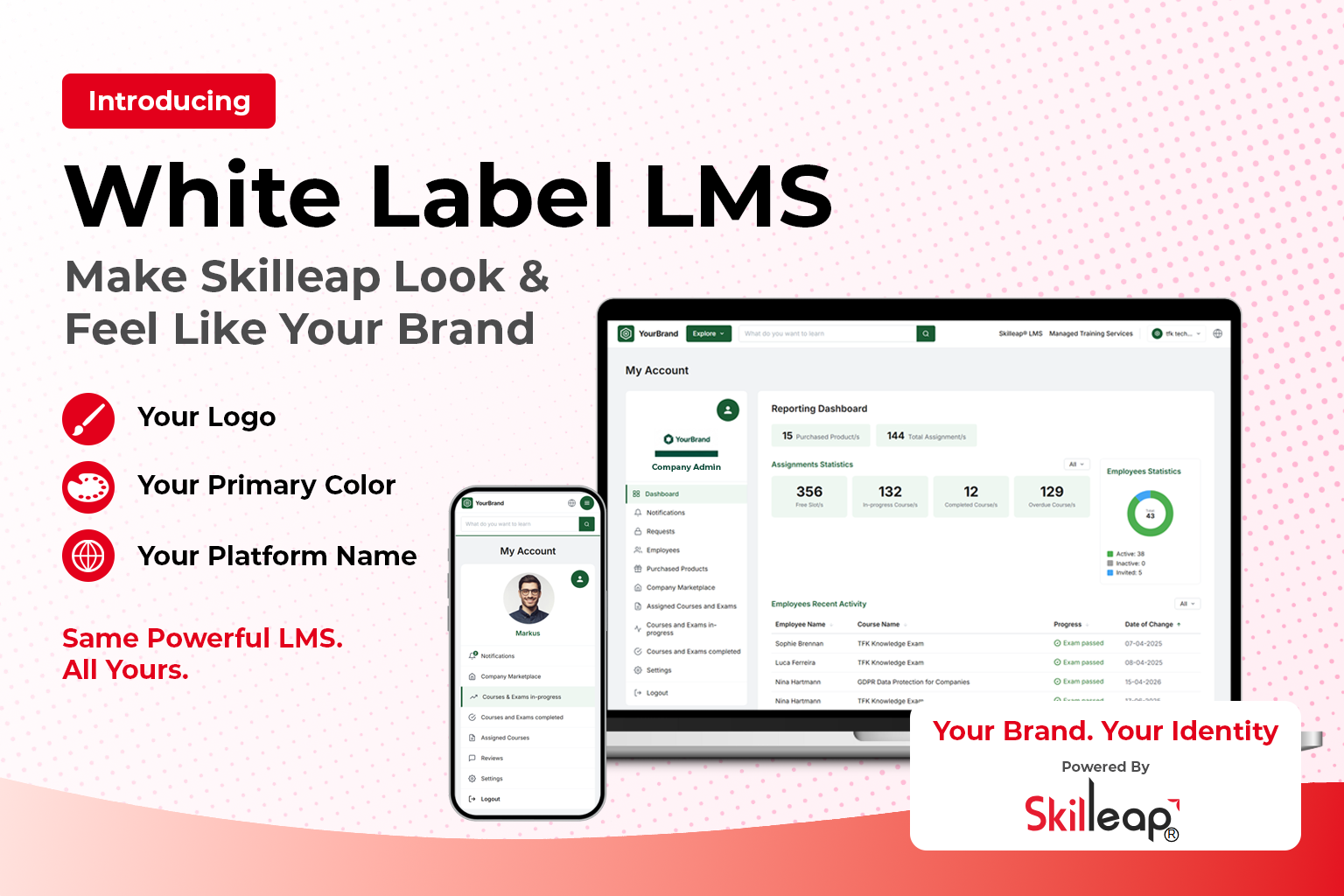
That's why we're excited to introduce white label LMS on Skilleap. Starting today, businesses on eligible plans can fully customize their Skilleap account to match their visual identity — from the colors learners see to the logo at the top of the page.
A white label LMS (Learning Management System) is a training platform that you can brand as your own. Instead of learners seeing the Skilleap logo and default styling, they see your company's name, colors, and identity throughout the entire experience.
This matters for a few key reasons:
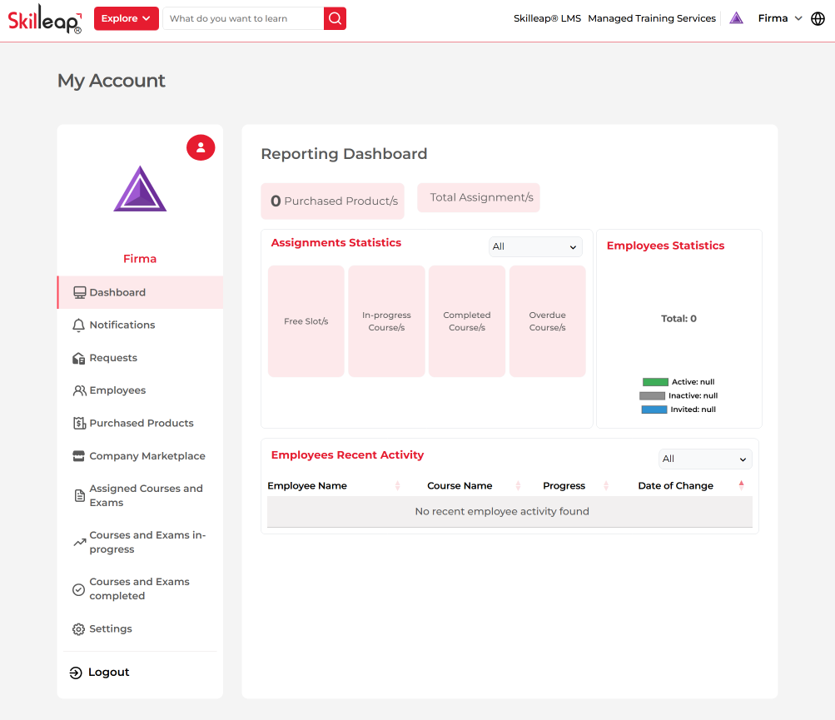
After you login to your company account, you will notice that the navigation bar and colors are related to Skilleap. See picture 1 below. Hence, no custom branding is applied.
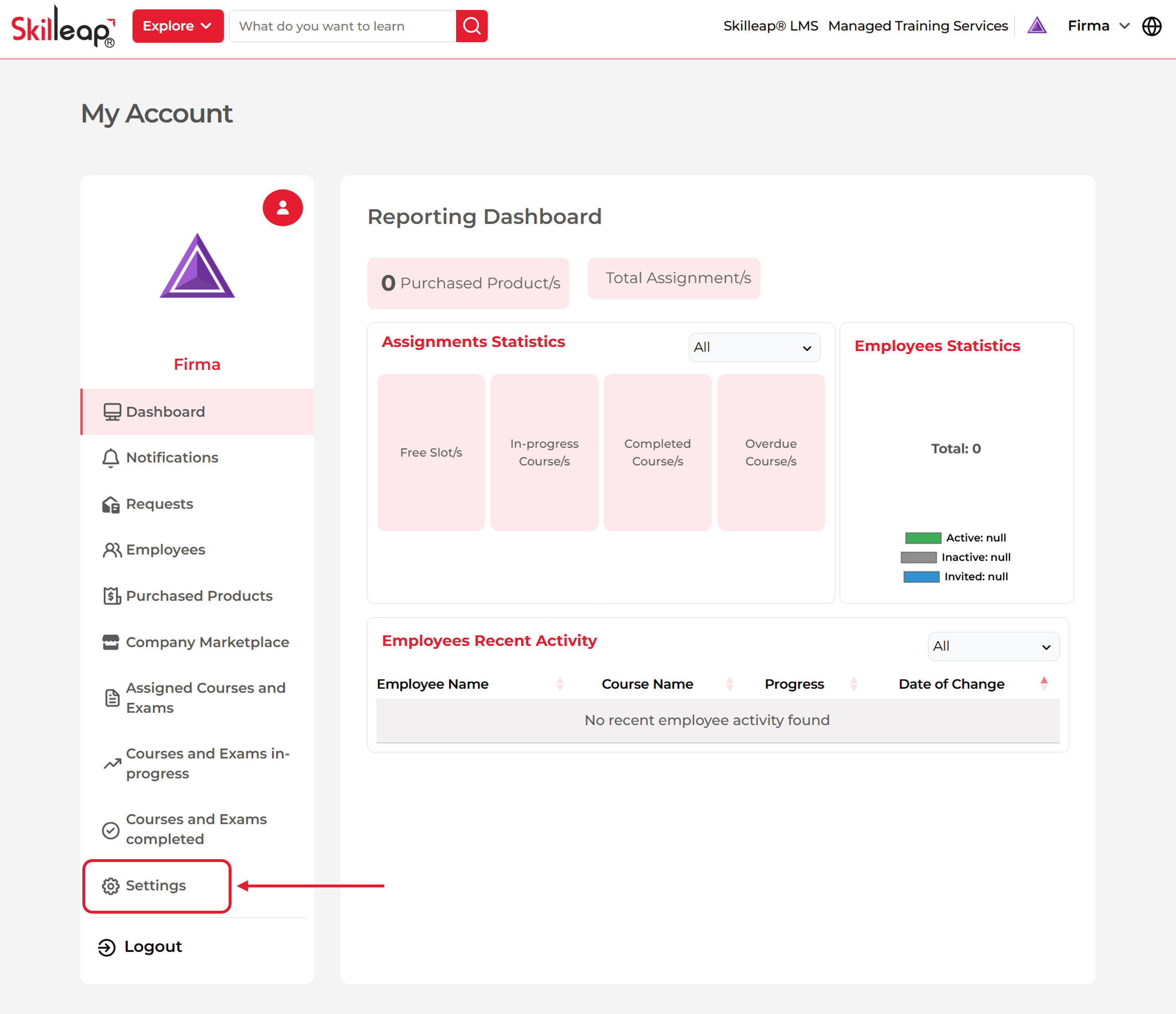
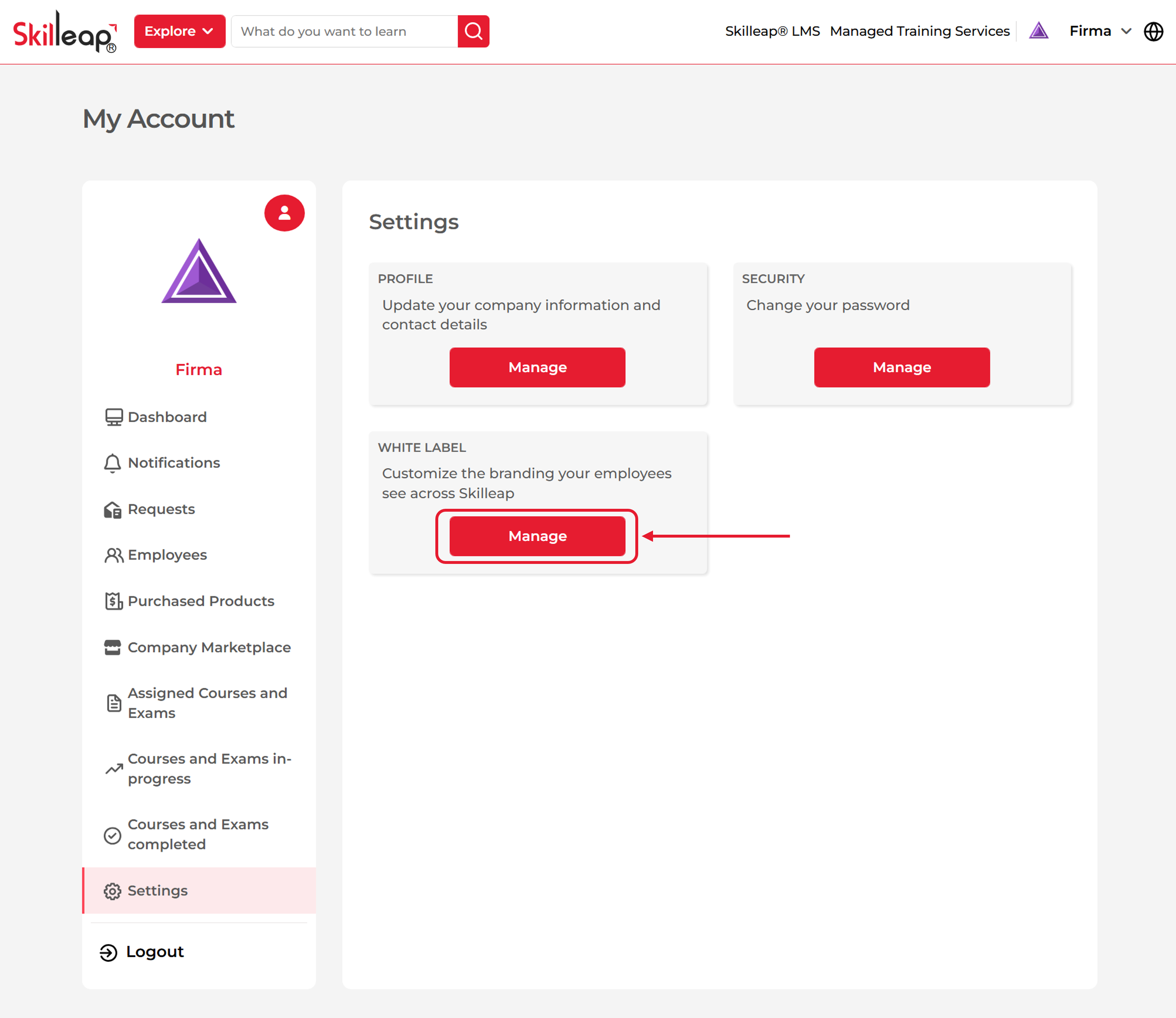
To enable white label customization, navigate to Settings. See picture 2.
Then, click on Manage inside the White Label feature. See picture 3.
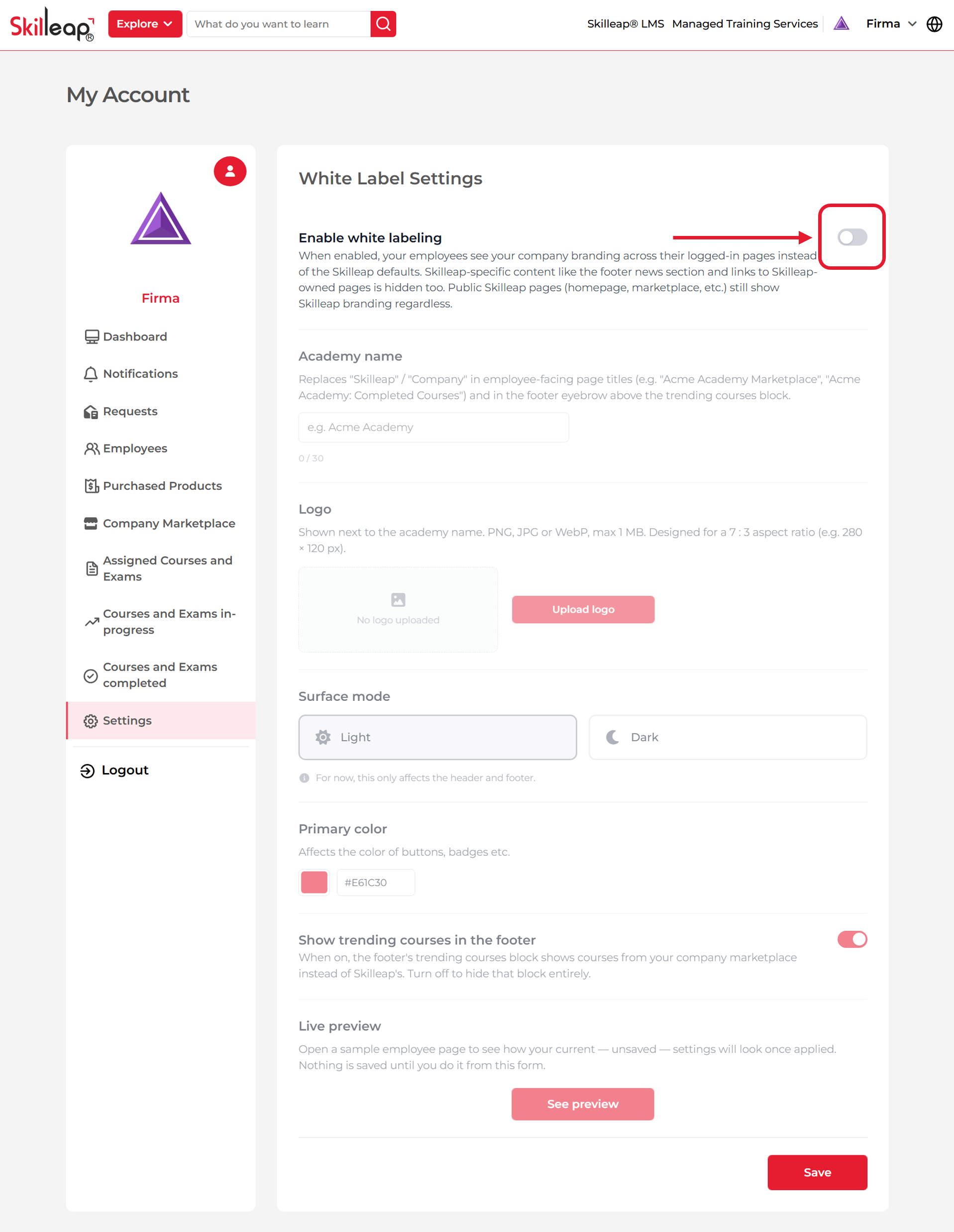
This form shown in picture 4 allows the brand customization. First, enable the white labeling feature.
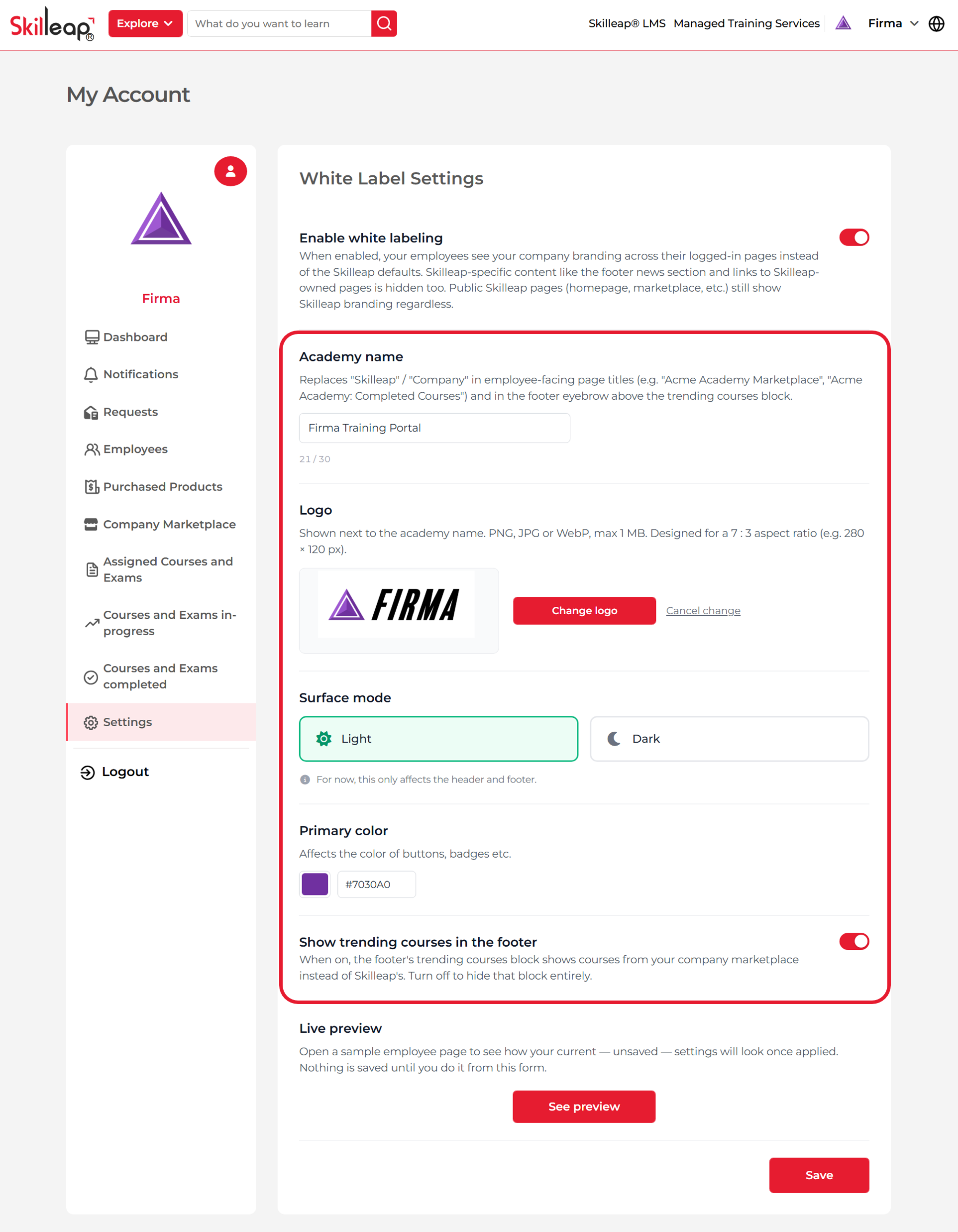
After enabling the white labeling feature, you can write the platform name, upload the logo with the specified dimensions, choose dark or light theme, and define the primary color. See picture 5.
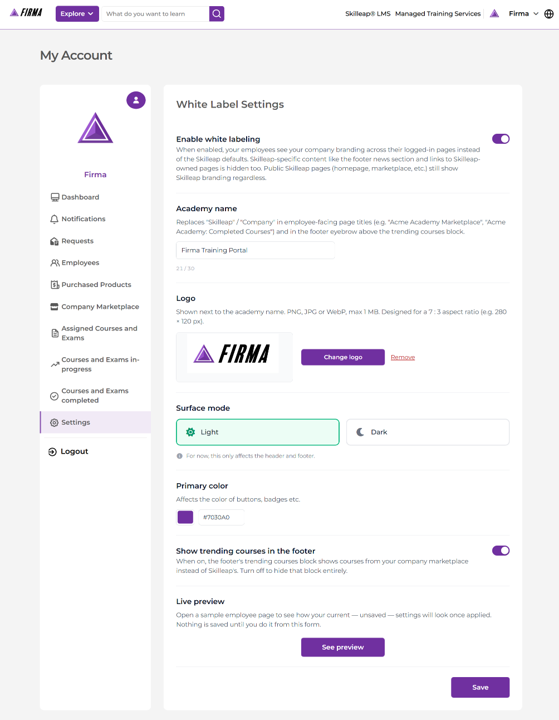
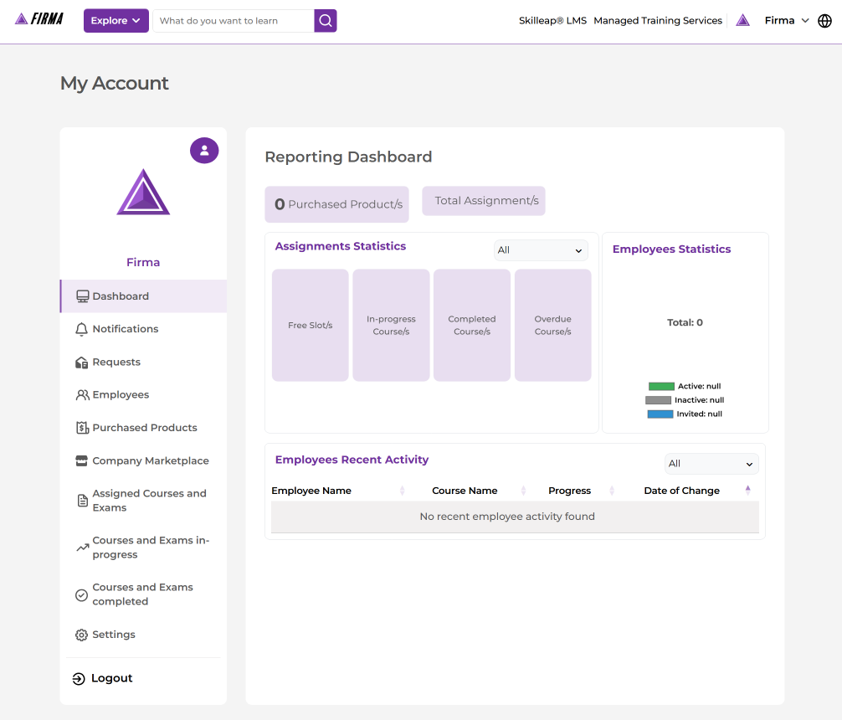
After entering all the settings, you could preview with the See preview button and adjust or apply the settings directly. In this example, all the settings are correct, so the Save button is clicked directly. Then, you will see that you branding is applied (navigation bar, color, logo, dashboard, buttons, etc). See pictures 6 & 7.
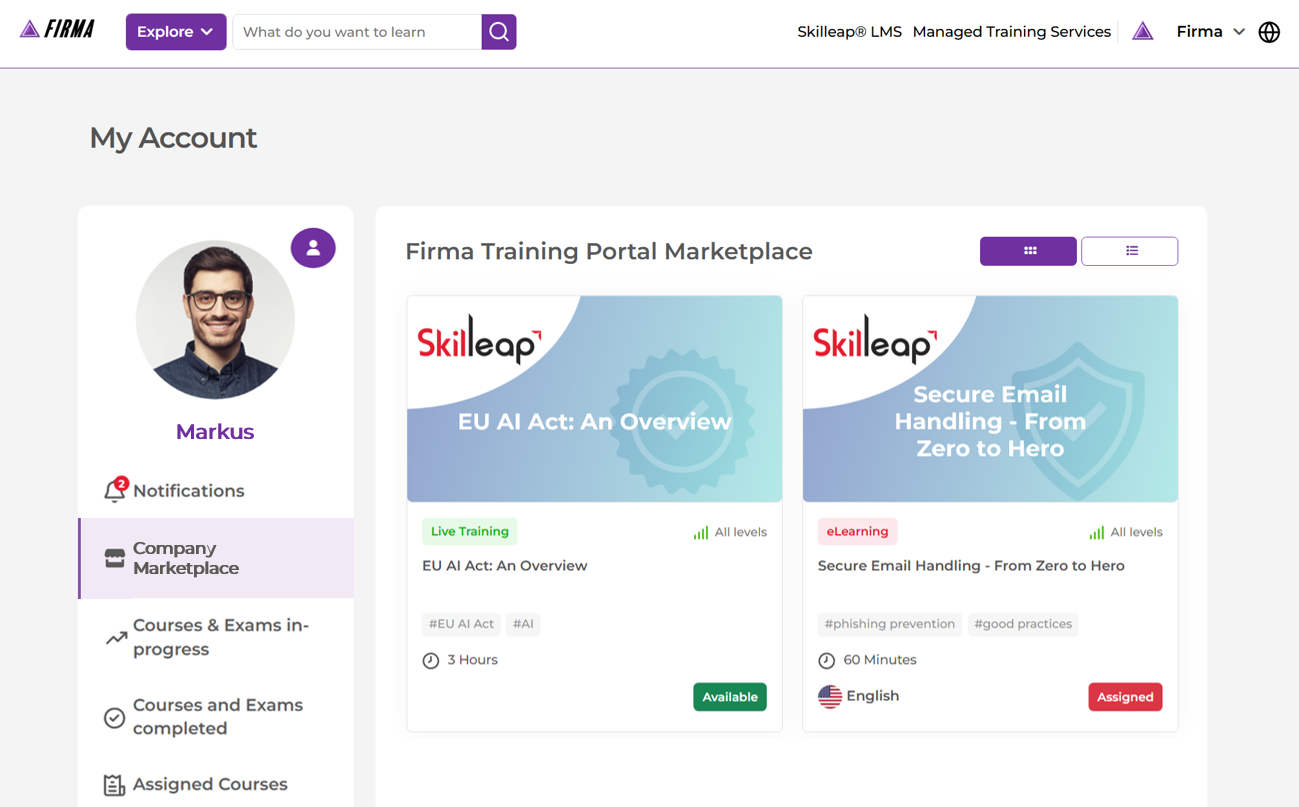
Going to the employee prespective, your employees, customers, or partners will see a clean portal with your branding. See the below picture.
As you have seen, it is super easy! No code. No design resources needed. Just your logo file and your hex codes.
Check our LMS now: LMS Services | Create, Train & Scale – Skilleap®
Or, request a demo: LMS Services | Create, Train & Scale – Skilleap®
26 Nov 2024
12 Dec 2024
04 Jun 2025
12 Feb 2026
10 Mar 2026
31 Mar 2026