

Skilleap Launch Announcement
 26 Nov 2024



 Skilleap Development
 Passkeys, 2FA, two-factor authentication, security
16 Jul 2026
Passkeys, 2FA, two-factor authentication, security
16 Jul 2026
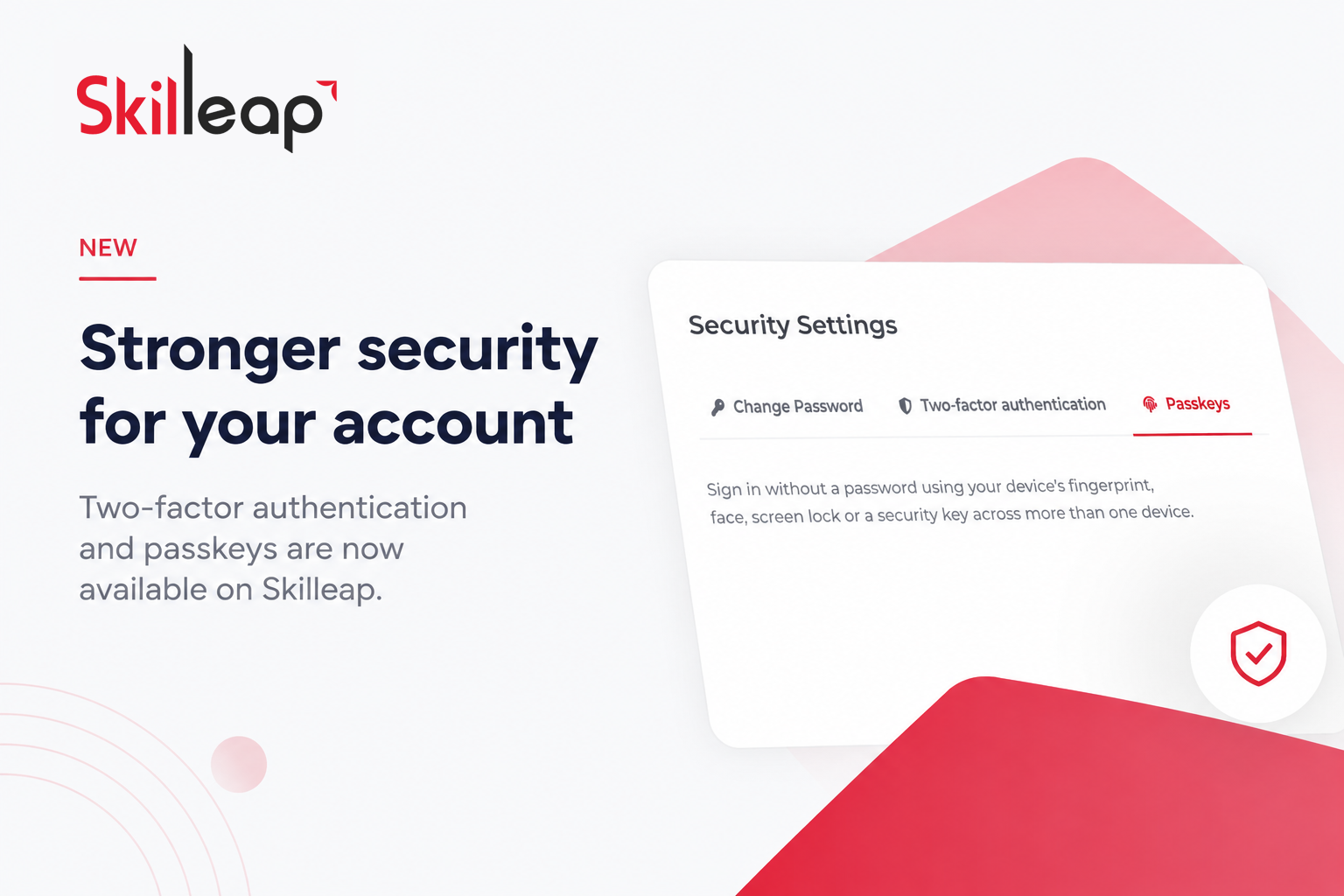
Protecting our users' accounts and personal data is a top priority. We are excited to announce the introduction of Two-Factor Authentication (2FA) and Passkeys as additional security options for all users. Passwords alone are no longer enough to protect against modern cyber threats.
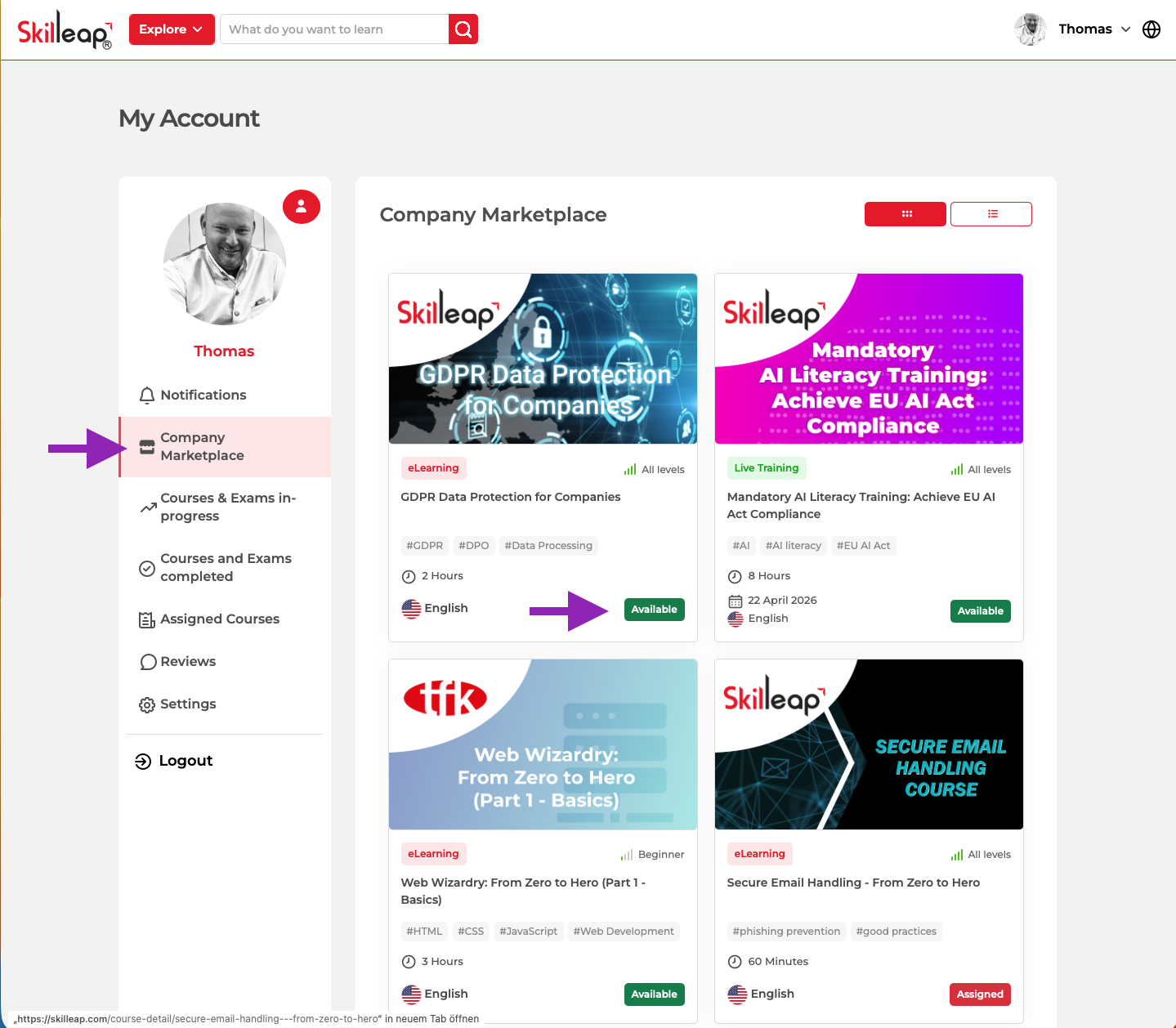
Let’s see first how to activate the Two-Factor Authentication (2FA) feature. In your account page “My Account”, go to “Settings”. Then, click “Manage” button in the “Security” section.
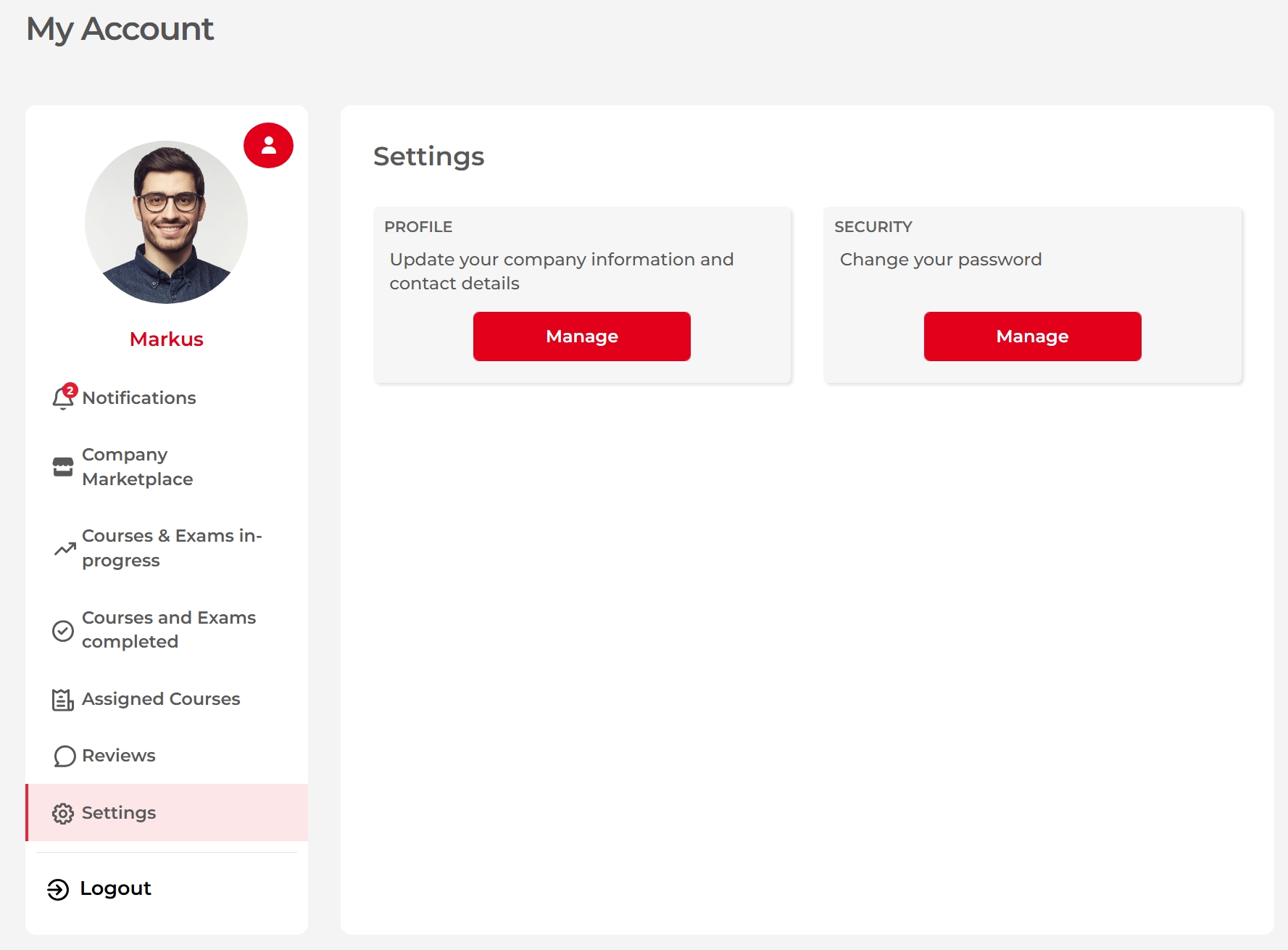 After that, you will see this window.
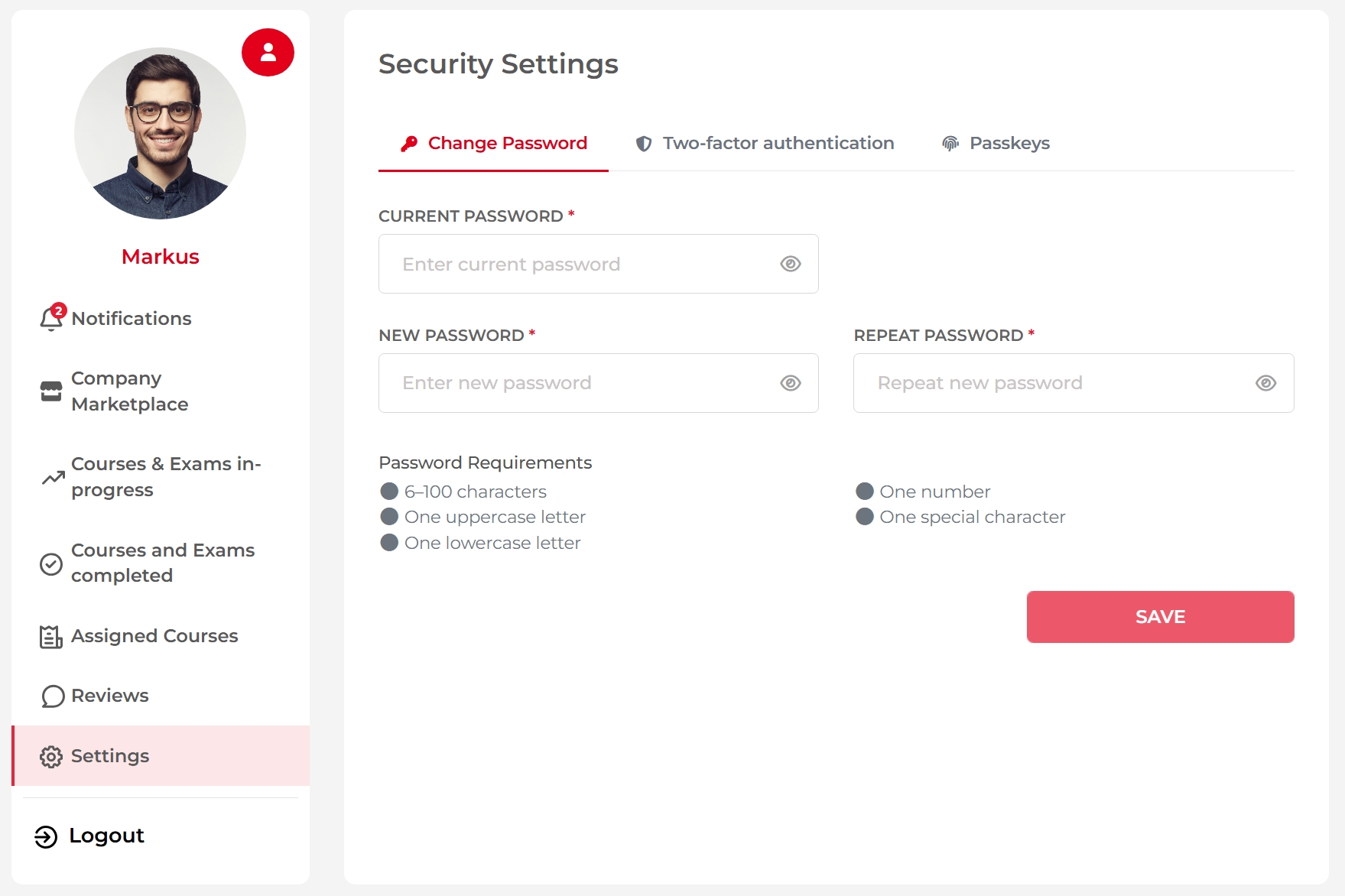 Click on the “Two-factor authentication” tab to open it. You will see the below window.
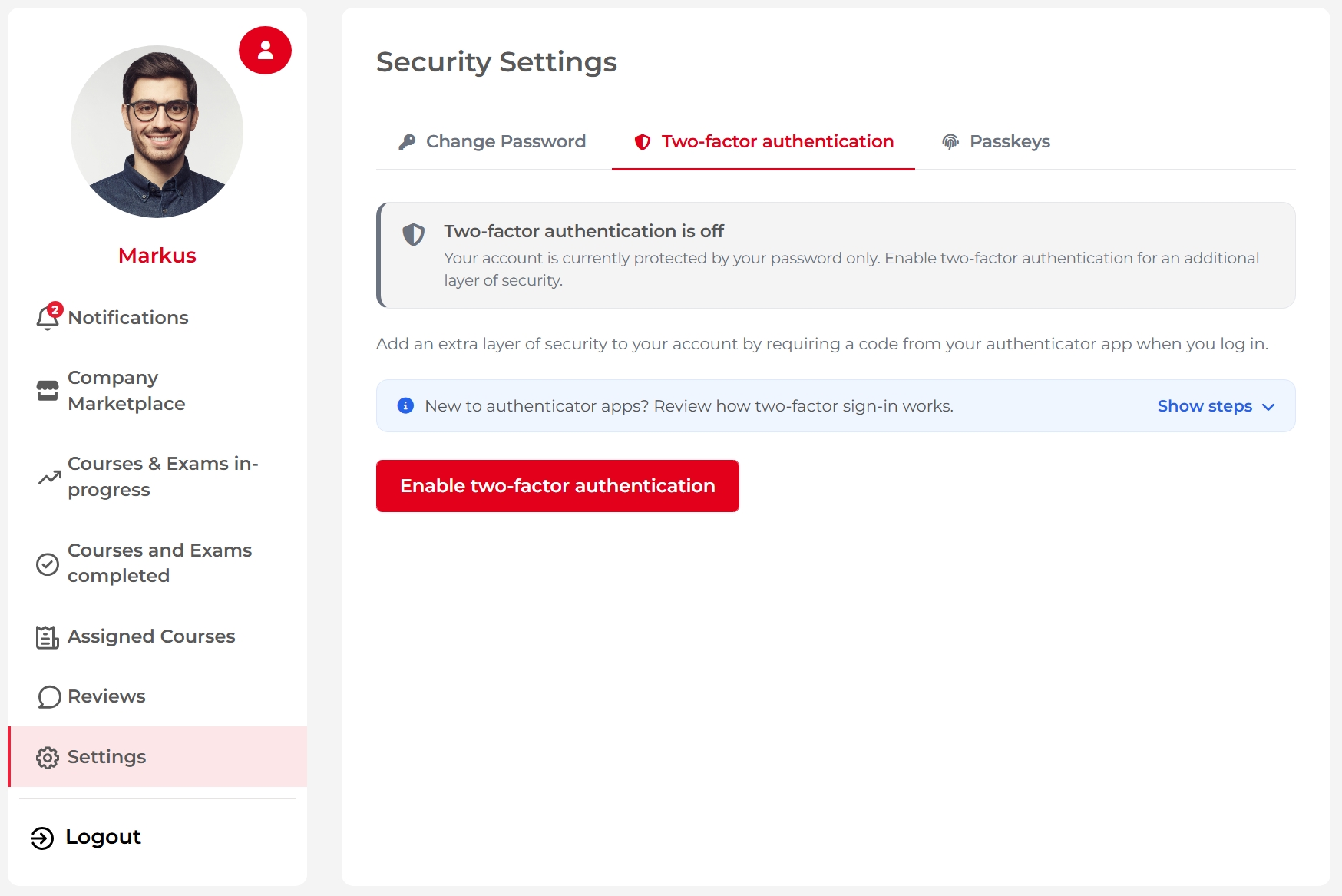
You will see here if you already have two-factor authentication enabled or not. You will see there is a button to see the steps to enable two-factor authentication. There is also the “Enable two-factor authentication” button.
It is recommended to open and read the steps. See the picture below.
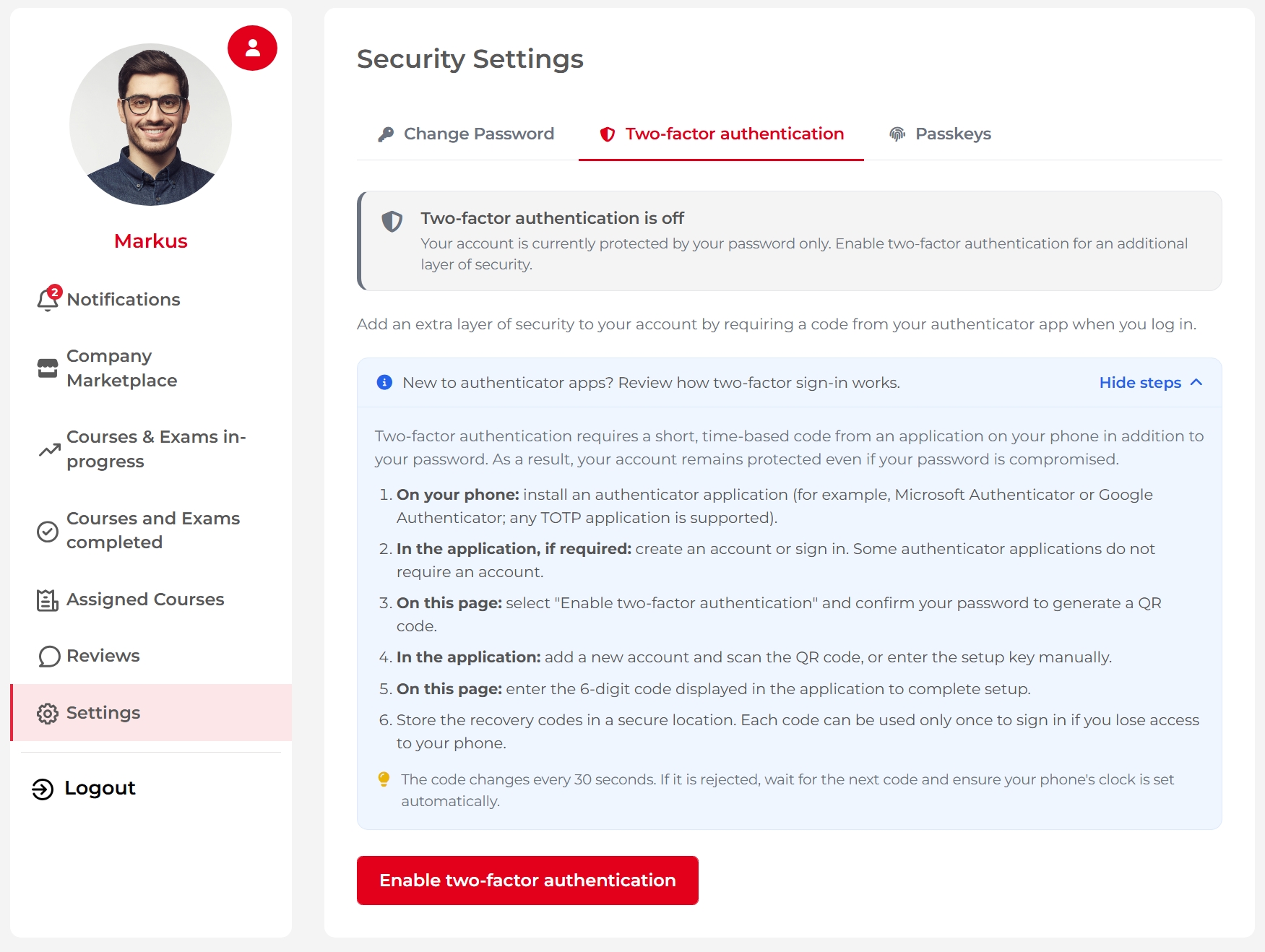 Now, that you have installed an authenticator app on your phone, click the “Enable two-factor authentication” button.
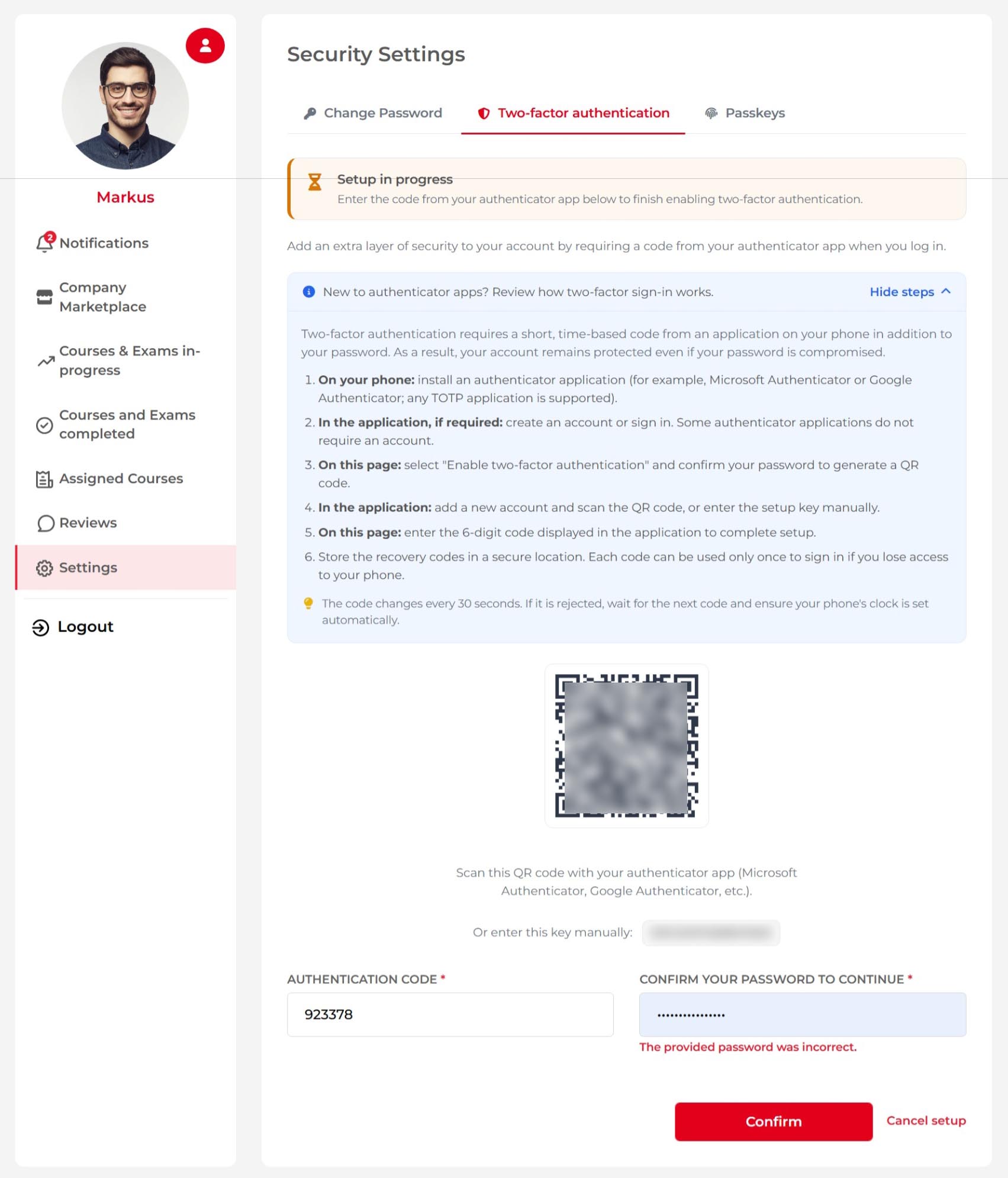 Using the authenticator app, scan this QR code and enter the authentication code provided by the app. Then, enter your account password. Finally, click on “Confirm”.
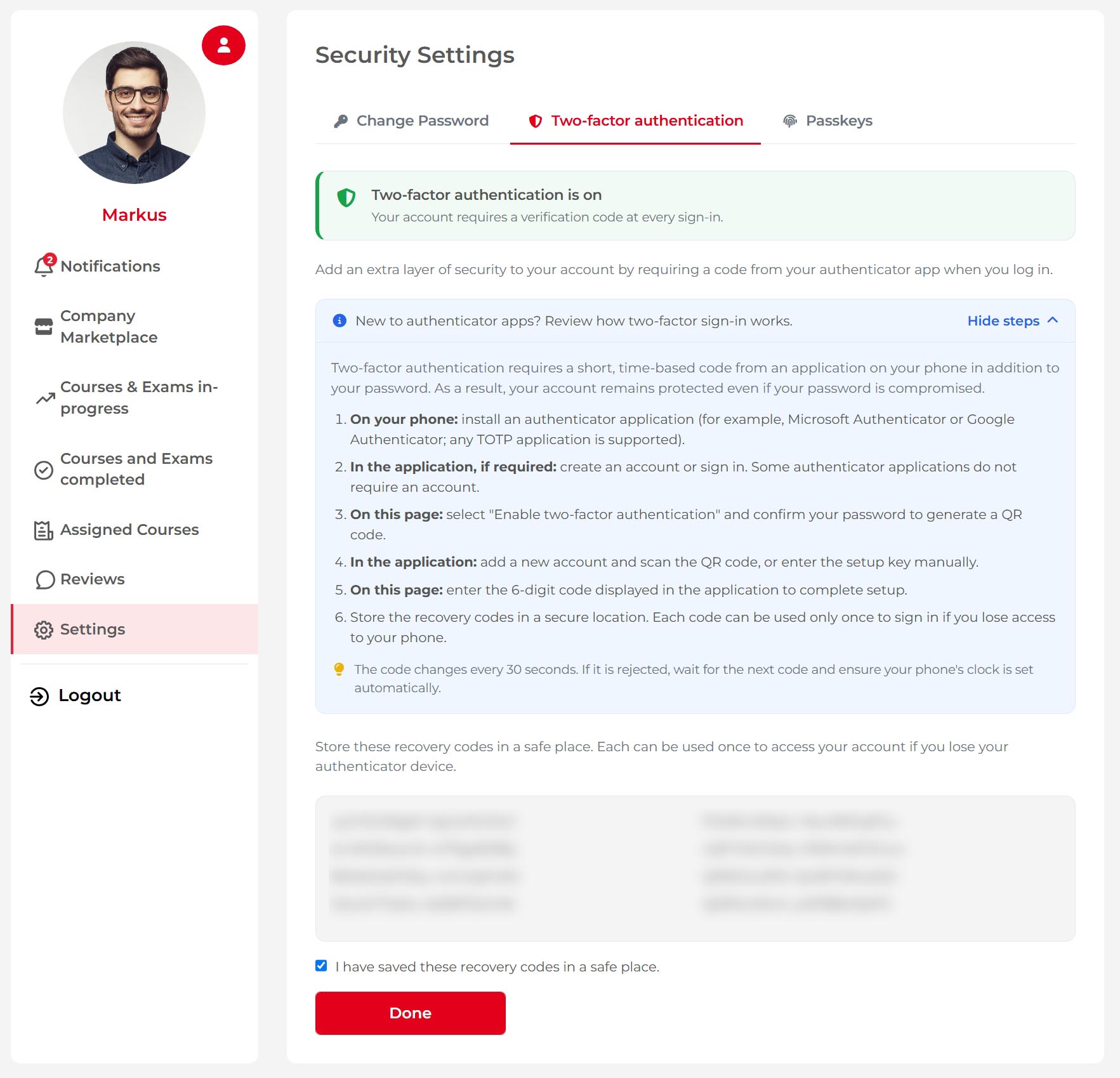
Two-factor authentication has now been enabled for this account. You will also receive recovery codes. Please save these codes in a secure location, as they can be used to access your account if you lose your authentication method. Once you have saved the recovery codes, select the checkbox and click "Done" to complete the setup process.
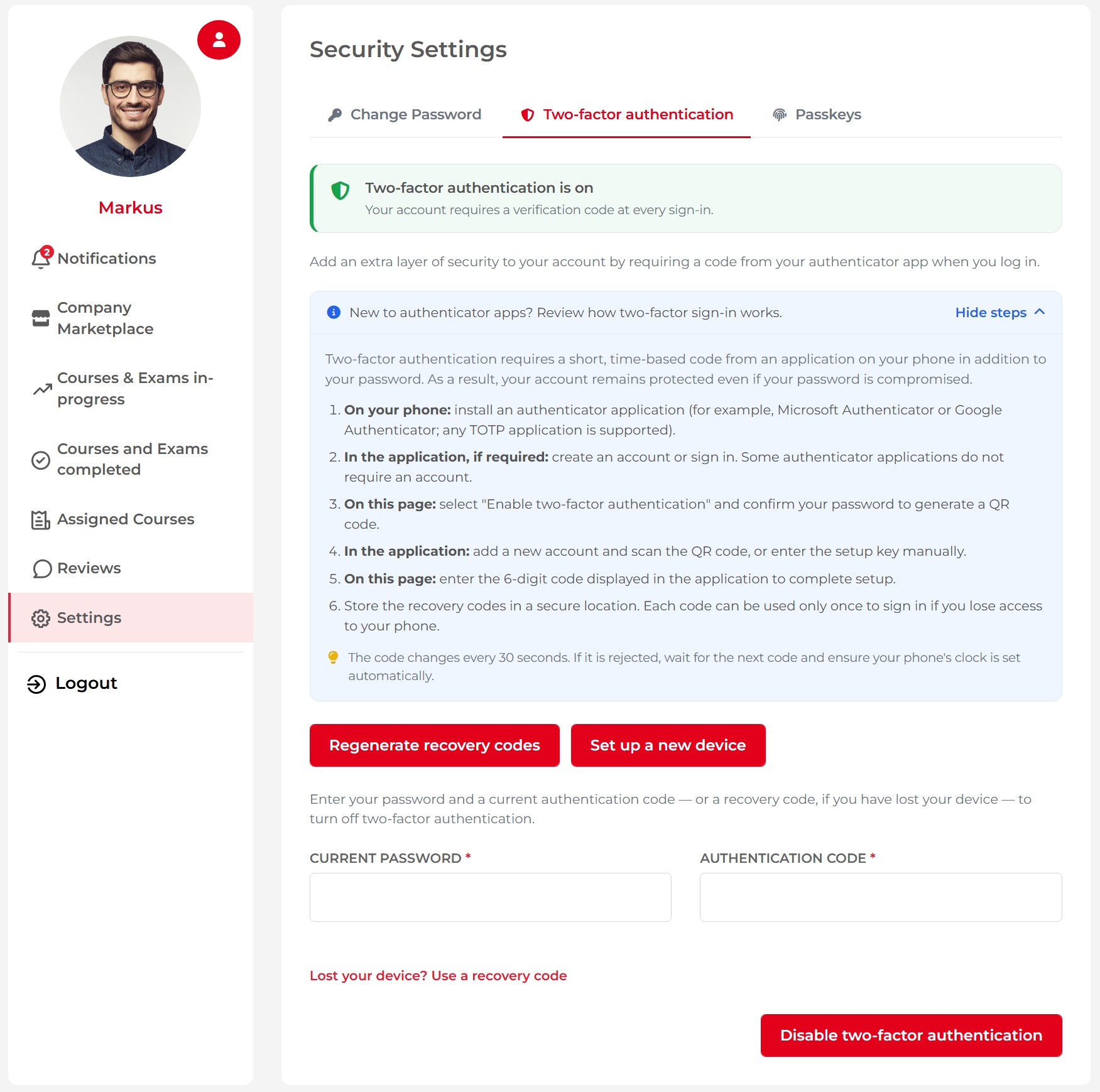
Great! You have now completed the process. You can now “regenerate recovery codes”, “setup a new device”, “Use a recovery code”, and “disable two-factor authentication”.
To see the effect of this feature, click on “Logout”. Then, log in again, you will see the screen below prompting you to enter the authentication code generated by the authenticator app on your phone or tablet.
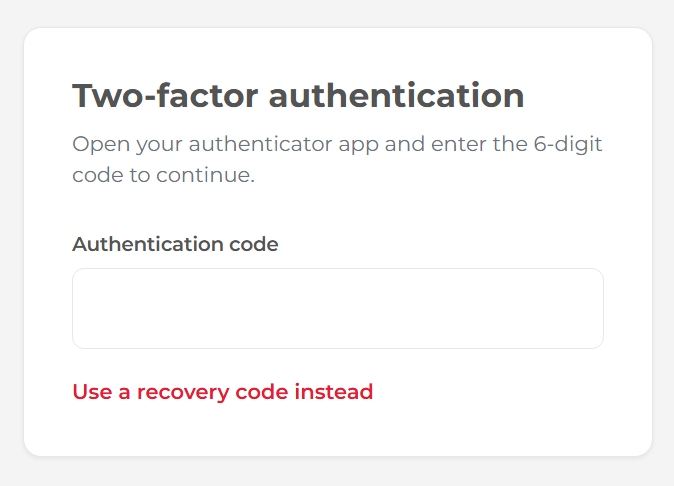
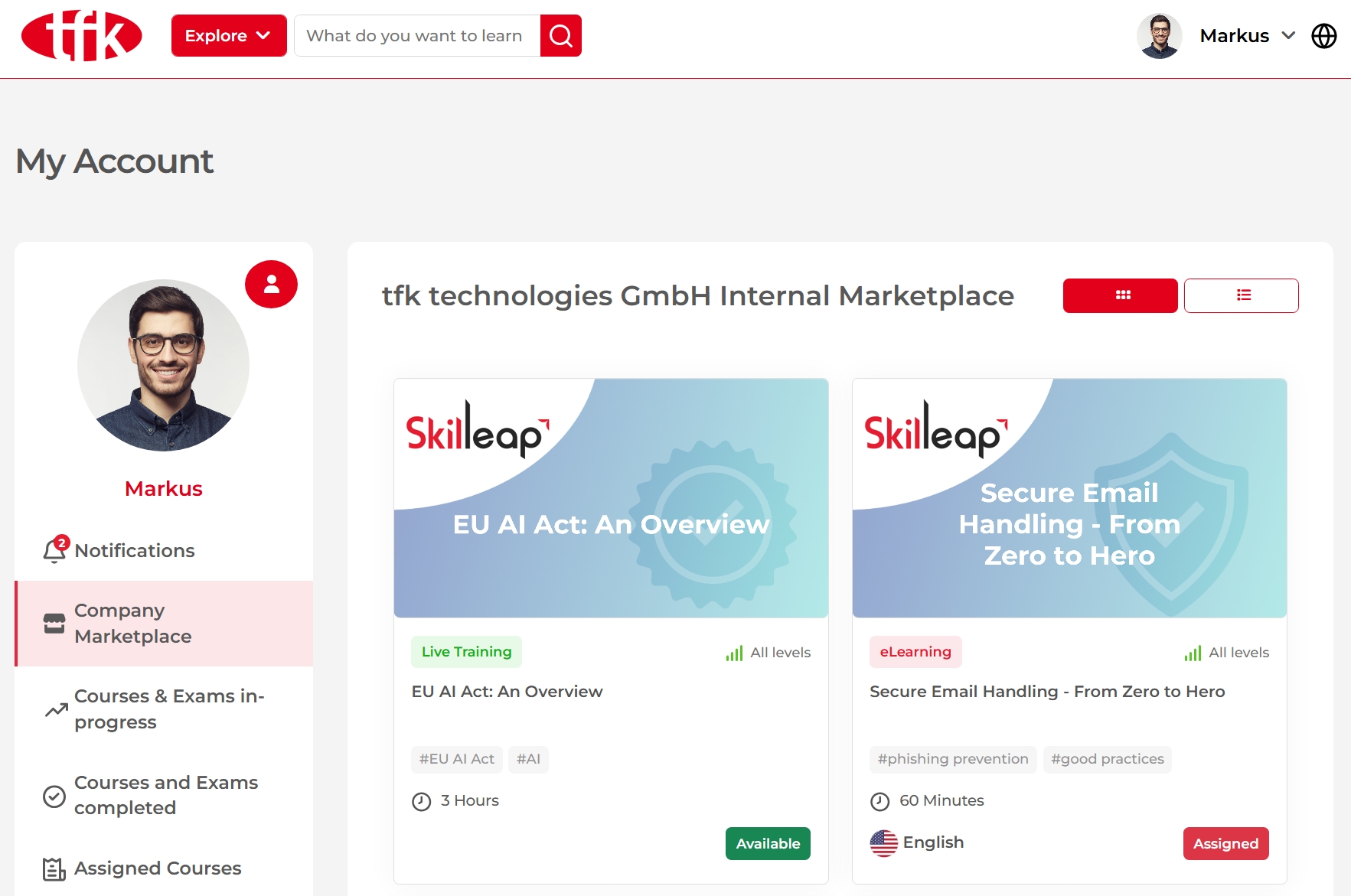
Upon entering the correct authentication code, you will be signed in and directed to your company marketplace.
 Now that we have seen how to set up two-factor authentication, let’s see how to add passkeys to access Skilleap. Again, it is recommended that you read the steps in the light blue section before starting the process.
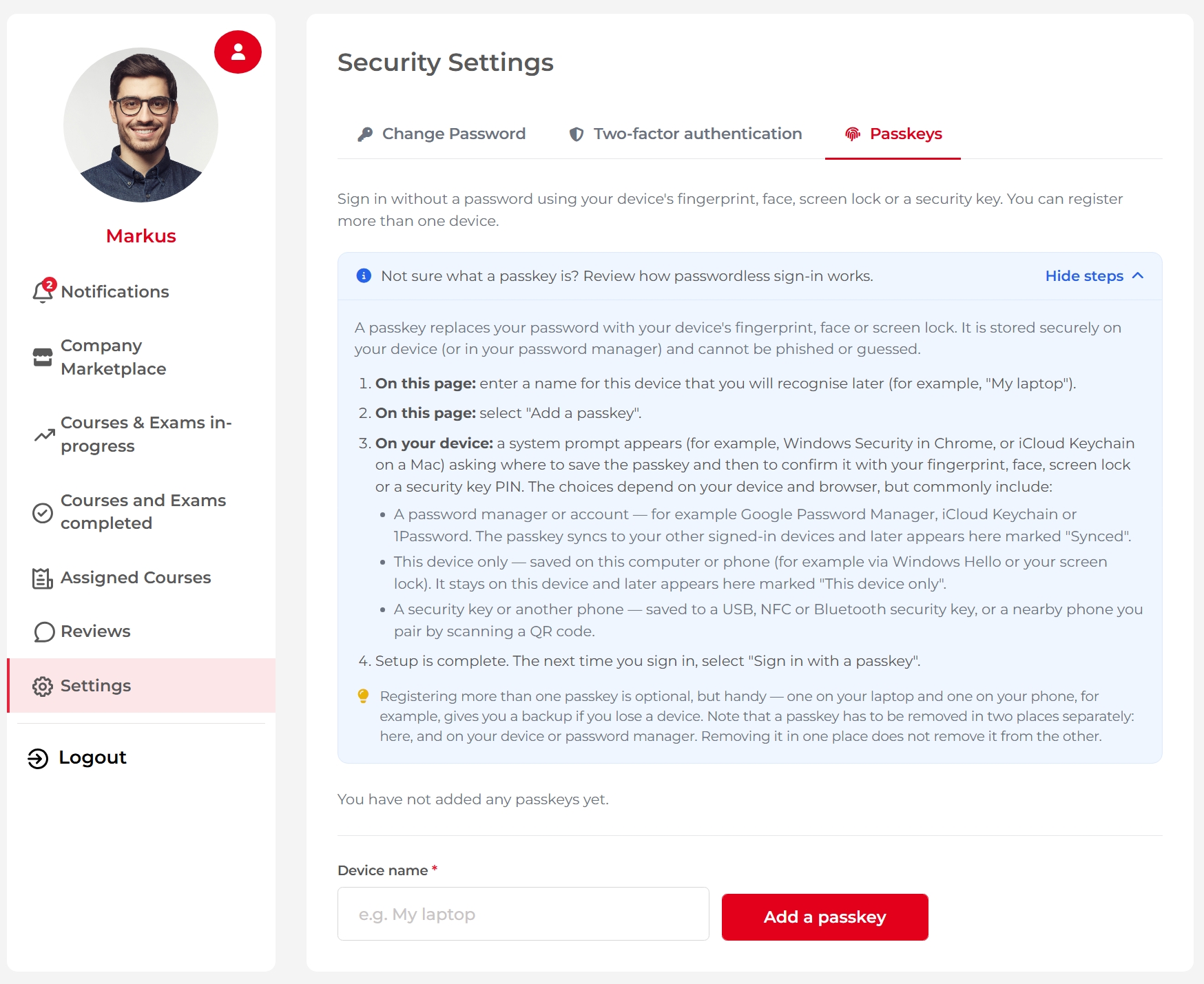 Let’s add the device name. In here, I have put “Laptop”.
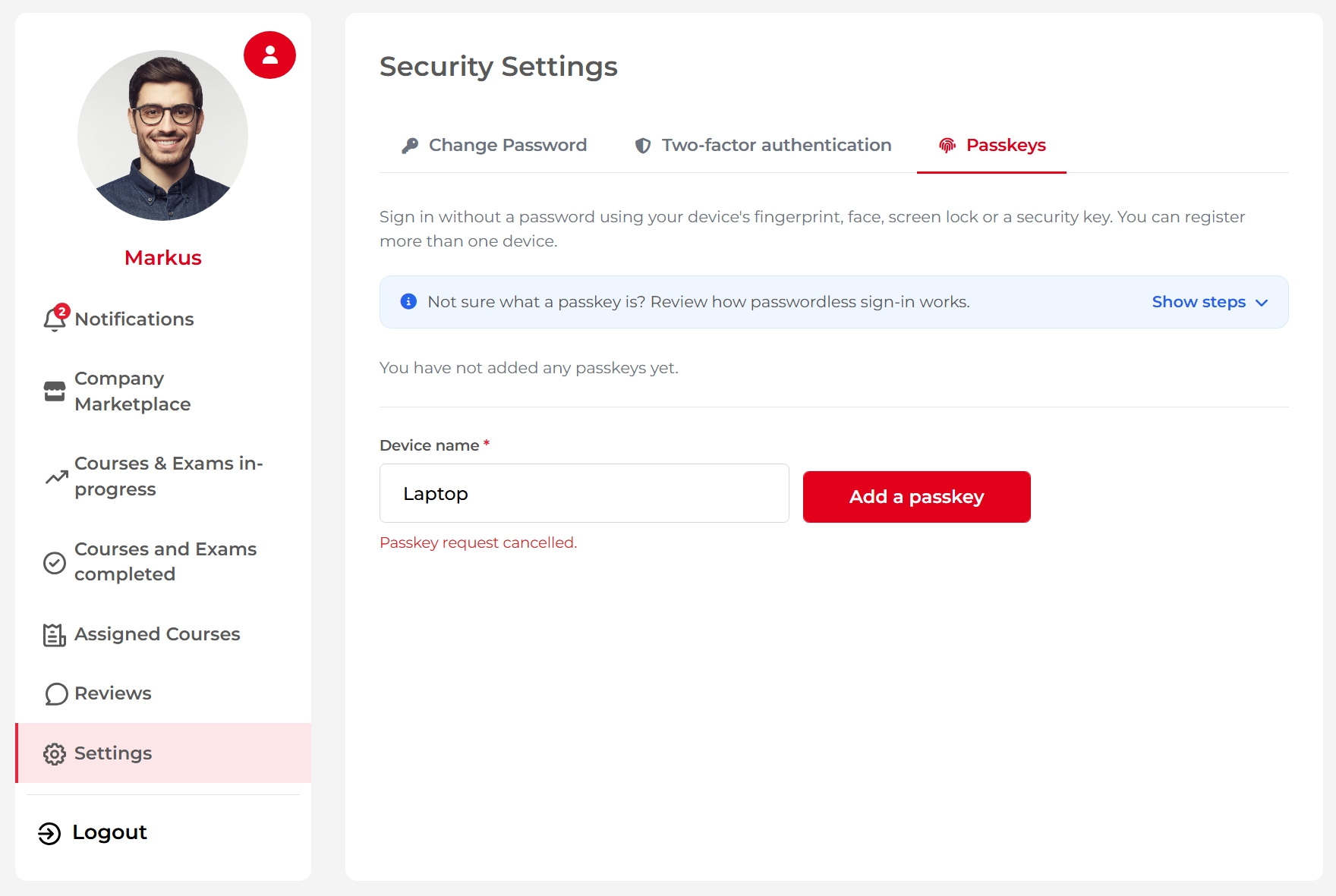 Click on the “Add a passkey” button to create the passkey. Next, you will see a pop-up window appearing to create a passkey for your account on Skilleap. Click “Create”.
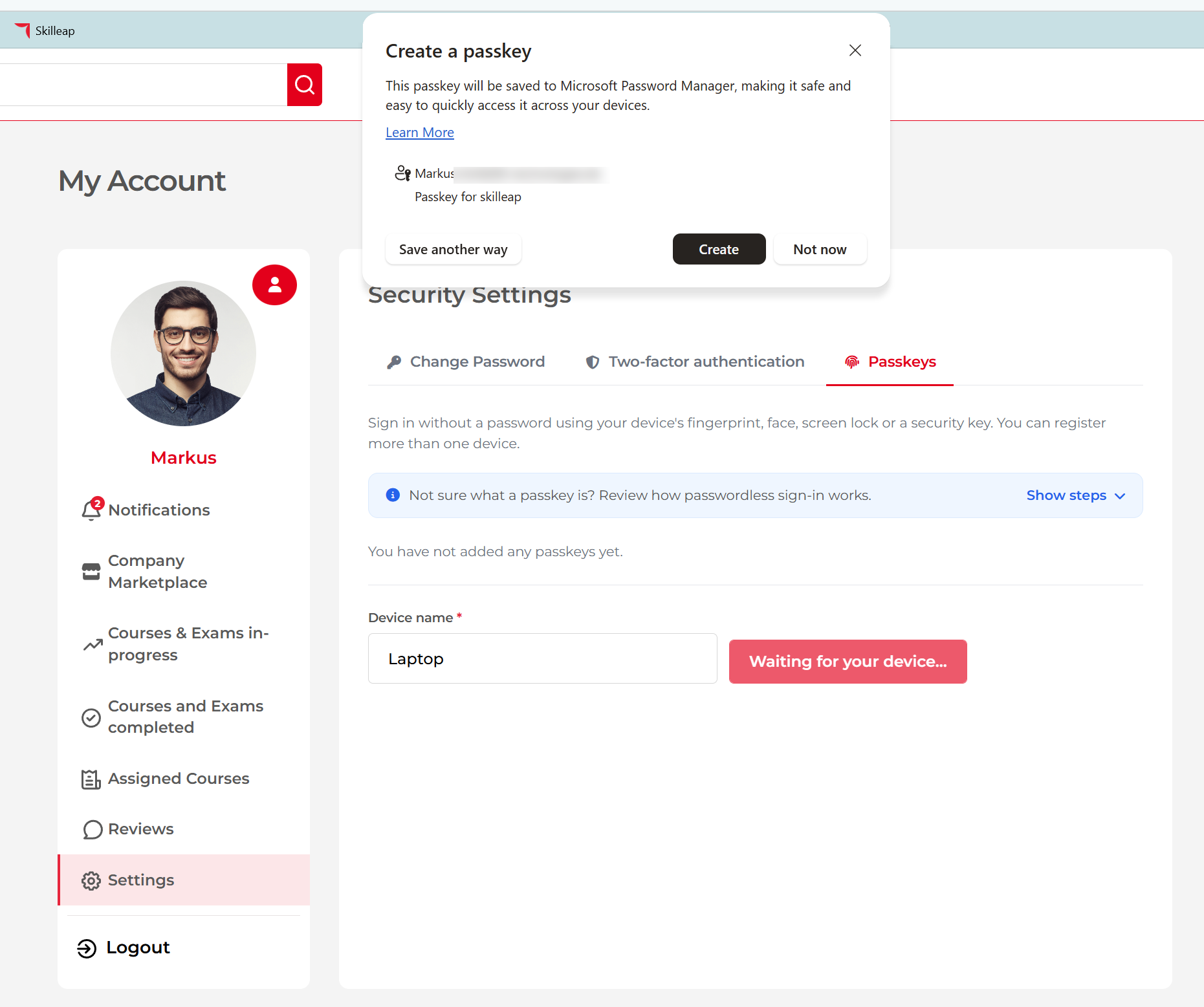
Great! That’s it. The passkey is created and added to your device password manager.
Conclusion:
Cybersecurity threats continue to evolve, making strong account protection more important than ever. By enabling Two-Factor Authentication (2FA) or/and using passkeys, you add powerful layers of security that significantly reduce the risk of unauthorized access to your account.
We encourage all Skilleap users to take a few minutes to review their security settings and enable these features.
Important to do: Log in to your Skilleap account, navigate to My Account → Settings → Security (Manage), and enable 2FA and/or passkeys if you have not already done so.

26 Nov 2024

12 Dec 2024

04 Jun 2025


12 Feb 2026
10 Mar 2026

31 Mar 2026